
eBook Formatting Guide – How to Format Your eBook for IJSmart Publishing Company?
If you are searching for an eBook Formatting Guide, then this guide will show you how to prepare your eBook for publication with IJSmart Publishing Company. We recommend using Microsoft Word for formatting.An eBook is a digital book that readers download and read on devices like phones, tablets, computers, or e-readers such as Kindle. It has no paper pages. It exists only as a file.An eBook Formatting Guide is a set of instructions that tells you how to prepare your manuscript file so it looks correct when readers open it on their devices. It covers things like paragraph indents, chapter titles, table of contents, images, page breaks, links, footnotes, and cover requirements.
eBook Formatting Guide
This guide explains how to prepare your eBook for publication with IJSmart Publishing Company using Microsoft Word. IJSmart Publishing Company accepts Word files in DOC or DOCX format only. For paragraph formatting, you must set first line indent to 0.2 inches, spacing before and after to 0 points, and line spacing to Single by modifying the Normal style under the Home tab. All chapter titles must be formatted as Heading 1 with center alignment, and subheadings should use Heading 2.
A table of contents must be created using Word’s built-in References tab by inserting an Automatic Table of Contents, and it must be updated whenever you add or change chapter titles. Page breaks, hyperlinks and Footnotes must be inserted. For cover requirements, you must provide a PDF or JPG file at 1600 by 2400 pixels minimum, with 300 DPI resolution, file size of 5MB or less, and RGB color profile. IJSmart Publishing Company has strict quality checks for all books and eBooks. If your submission fails these checks, it may be rejected or removed from sale. Following are the step by step details eBook Formatting Guide for you to help you publish your ebook:
File Format
IJSmart Publishing accepts files in the Word (DOC, DOCX) version only.
Set Paragraph Indentations and Line Spacing
To ensure your book text displays consistently, indent paragraphs and set line spacing. The paragraphs should be indented by 0.2 inches with single line spacing. If you dont know how to Set Paragraph Indentations and Line Spacing then follow the below step by step guide:
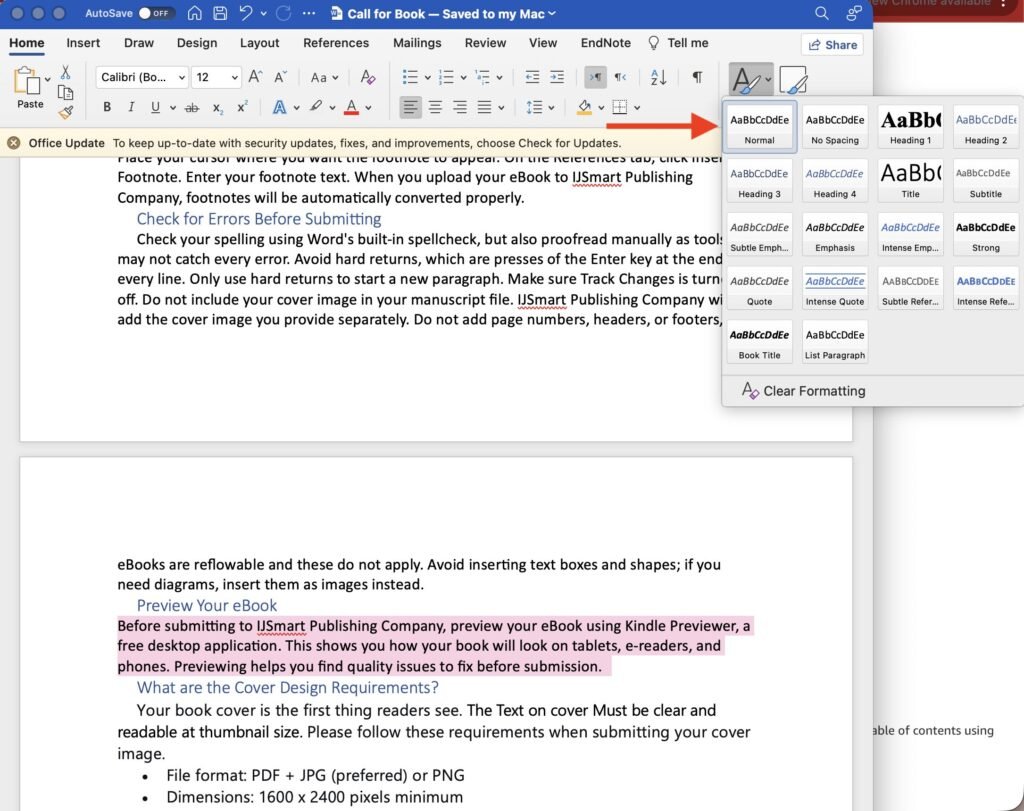
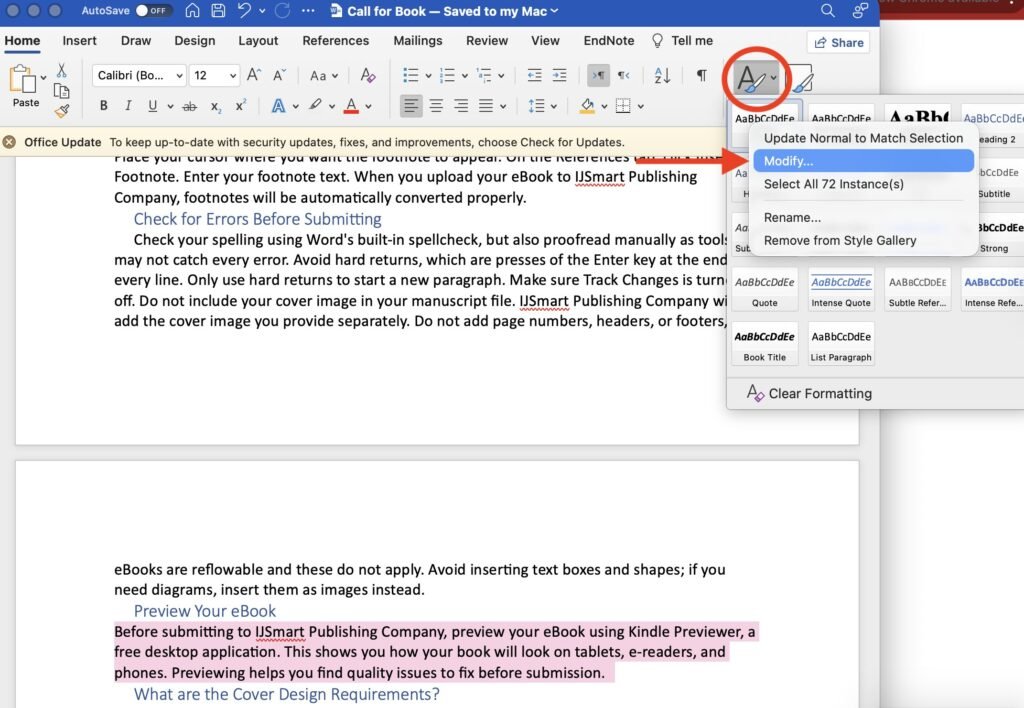
- On the Home tab, right-click the Normal style and choose Modify. Follow the steps in the attached image:
- Click the Format list at the bottom and choose Paragraph.
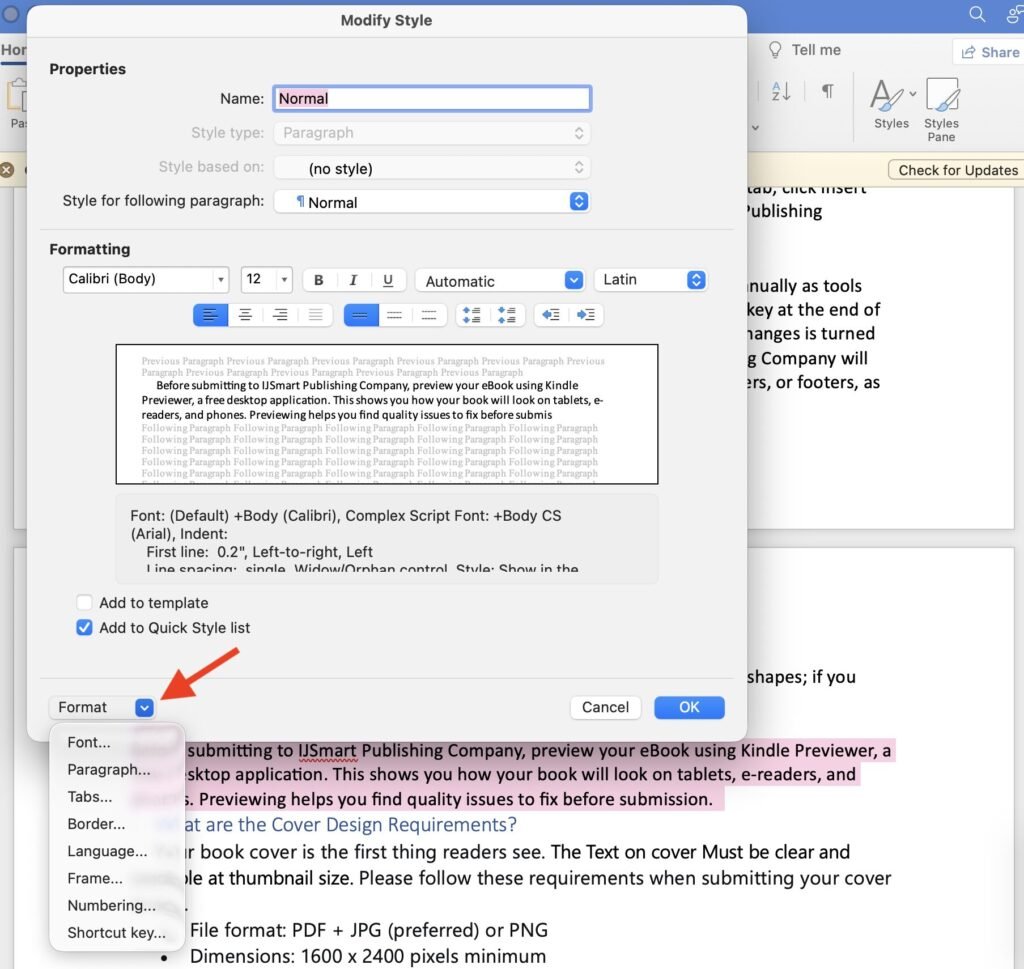
- Under Indentation, set First line indent to 0.2 inches. Under Spacing, set Before and After to 0 points and Line spacing to Single.
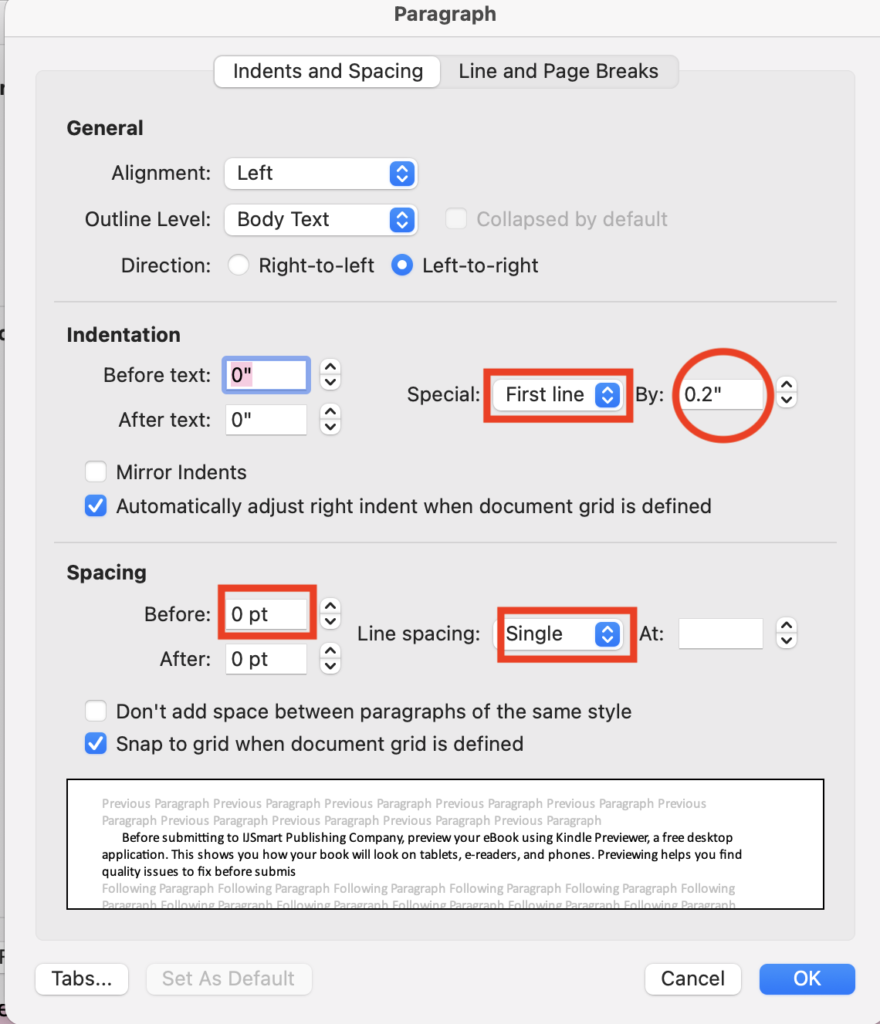
- Click OK.
Format Chapter Titles
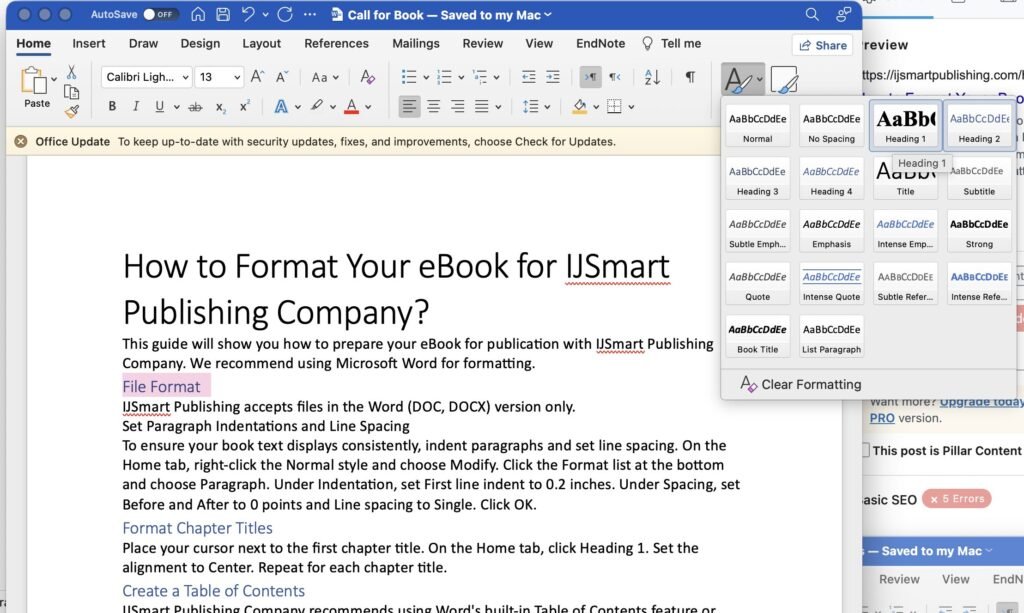
Every chapter should be formatted as heading 1, and should be aligned to the center.
How to format your chapter titles for an ebook in MS Word? Place your cursor next to the first chapter title. On the Home tab, click Heading 1. Set the alignment to Center. Repeat for each chapter title. The image below shows How to format chapters in the MS Word:
Create a Table of Contents
IJSmart Publishing Company recommends using Word’s built-in Table of Contents feature to create your table of contents easily. You must be wondering how to create table of contents in the MS Word file automatic Before you can create a table of contents, you must tell Word which text is a chapter titles and a subheading.
- Highlight your first chapter title (for example, “Chapter 1: Introduction”)
- On the Home tab, look for the Styles section
- Click Heading 1 (for main chapter titles)
- For subheadings within a chapter, highlight the text and click Heading 2
- Repeat this for every chapter title and subheading in your book
- Go to the page where you want your table of contents to appear (usually after the title page and before the first chapter)
- Click your mouse to place the cursor at the top of that page
- Click on the References tab at the top of Word
- Click Table of Contents on the far left
- Choose Automatic Table 1 or Automatic Table 2 from the dropdown menu
The image below shows how to create a table of contents in MS Word:
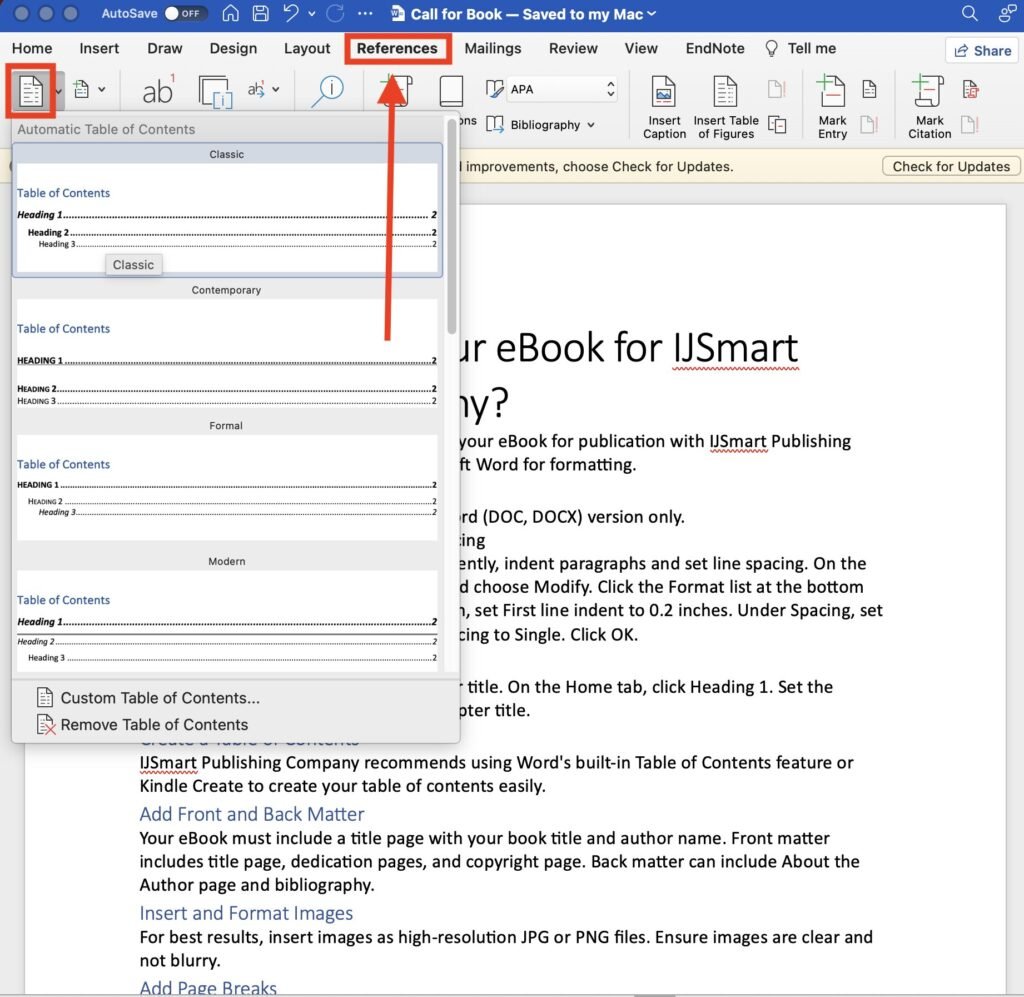
If you add, remove, or change any chapter titles after creating the table of contents, you must update it.
- Click anywhere inside the table of contents
- Click Update Table that appears above the table
- Choose Update entire table and click OK
Add Front and Back Matter
Your eBook must include a title page with your book title and author name. Front matter includes title page, dedication pages, and copyright page. Back matter can include About the Author page and bibliography.
Insert and Format Images
For best results, insert images as high-resolution JPG or PNG files. Ensure images are clear and not blurry.
Add Page Breaks
Add a page break only when you want a new chapter or section to start on a fresh page. Let the rest of the text flow naturally without forced breaks.
How to add page breaks in the MS Word file? Place your cursor where you want your page to end. Go to the Insert tab and click Page Break. This ensures your text displays correctly. The image shows how to add page breaks in the MS Word file.
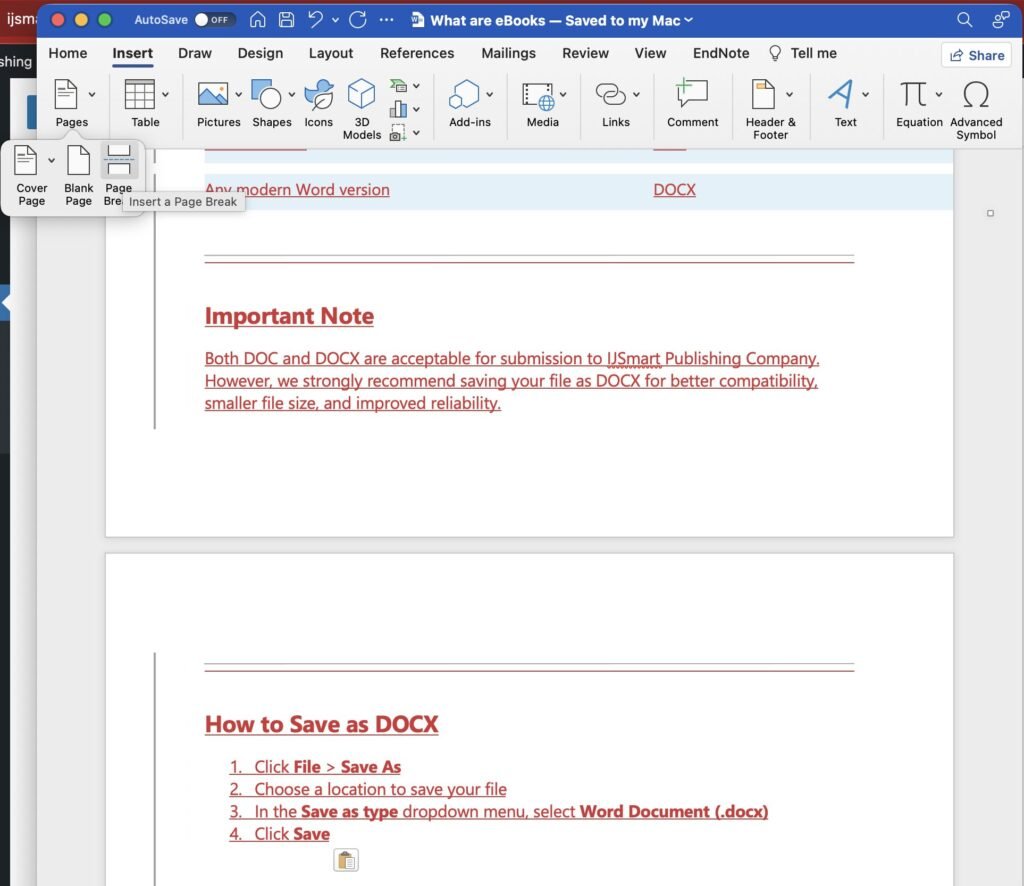
Insert Hyperlinks
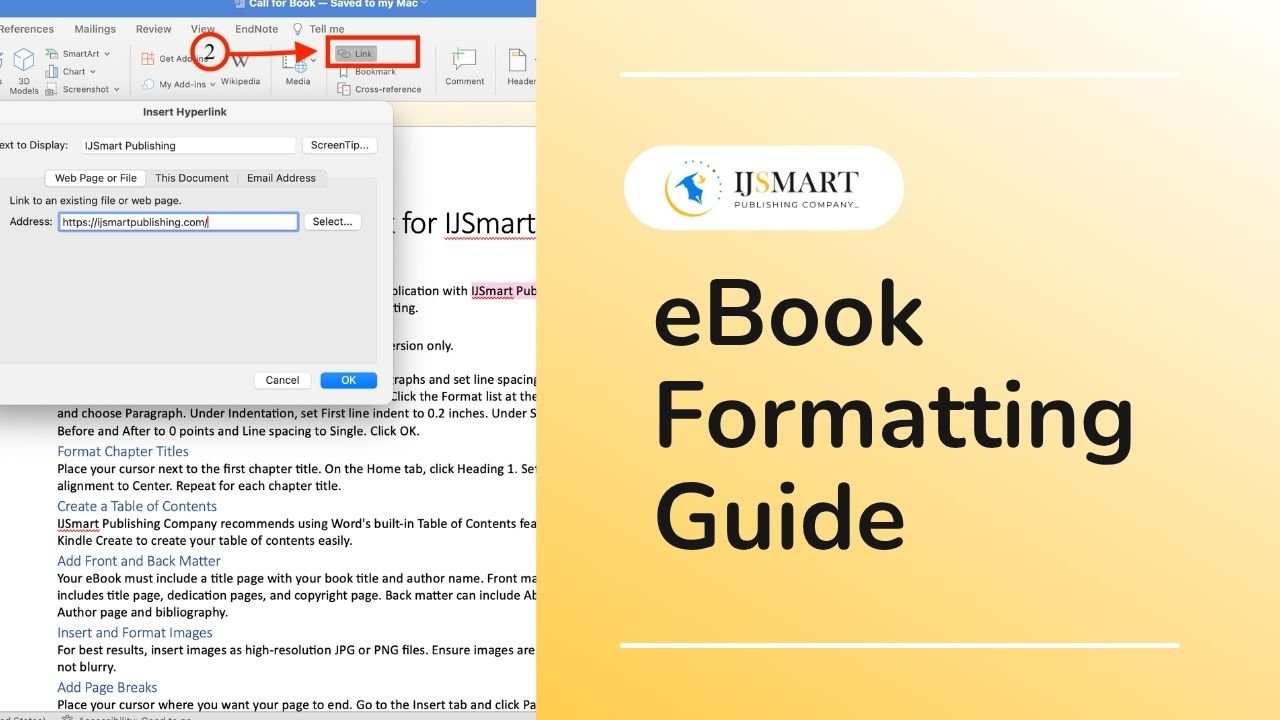
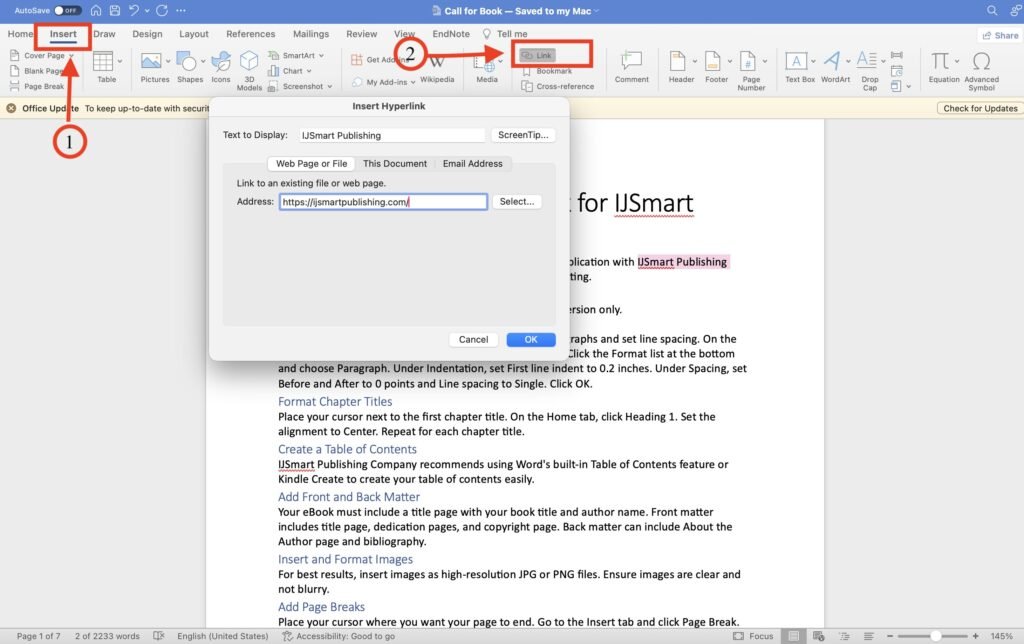
You can insert hyperlinks in your ebook if you want to add them; if you don’t want to add, you can ignore this step. If you don’t know how to add a hyperlink in the Microsoft Word file the follow these guidelines:
Highlight the text you want to link. Go to the Insert tab, under Links, click Hyperlink. Enter the URL you want to link to in the Address field. Click OK. For more accurate details please check the below mentioned image:
The following links are not allowed by IJSmart Publishing Company:
- Links to pornography
- Links to commercial eBook stores other than those approved by IJSmart Publishing Company
- Links to web forms that request customer information such as email address or physical address
- Links to illegal, harmful, infringing, or offensive content
- Links that are malicious in intent such as viruses or phishing
External hyperlinks are not currently supported on e-reader devices for fixed-layout books. IJSmart Publishing Company reserves the right to remove links at its discretion. If external links become broken due to forces outside of your control, deactivate them and add text such as “(URL inactive)” after the link text.
Add Footnotes
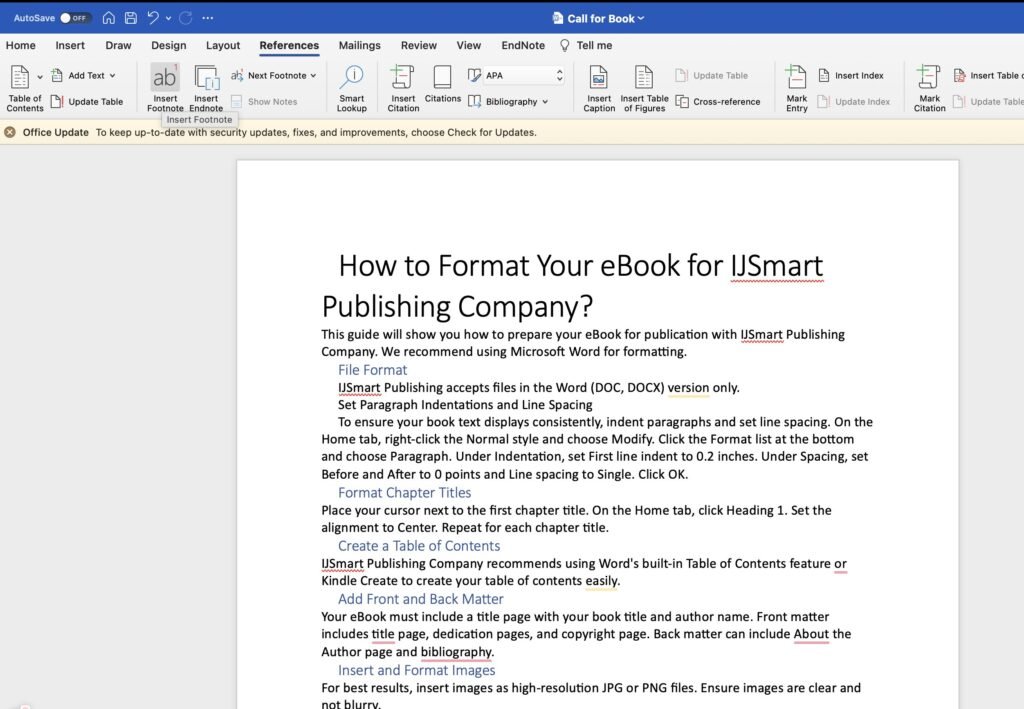
Every piece of information, data, or image used in your book must be properly cited with a clear reference to the source. If you don’t know how to add footnotes or references in MS word, then here are the guidelines:
Place your cursor where you want the footnote to appear. On the References tab, click Insert Footnote. Enter your footnote text. When you upload your eBook to IJSmart Publishing Company, footnotes will be automatically converted properly.
Attached below image shows guidelines on how you can add a footnote in your MS Word file:
Check for Errors Before Submitting
Check your spelling using Word’s built-in spellcheck, but also proofread manually as tools may not catch every error. Avoid hard returns, which are presses of the Enter key at the end of every line. Only use hard returns to start a new paragraph. Make sure Track Changes is turned off. Do not include your cover image in your manuscript file. IJSmart Publishing Company will add the cover image you provide separately. Do not add page numbers, headers, or footers, as eBooks are reflowable and these do not apply. Avoid inserting text boxes and shapes; if you need diagrams, insert them as images instead.
What are the Cover Design Requirements?
Your book cover is the first thing readers see. The Text on cover Must be clear and readable at thumbnail size. Please follow these requirements when submitting your cover image.
- File format: PDF + JPG (preferred) or PNG
- Dimensions: 1600 x 2400 pixels minimum
- Resolution: 300 DPI minimum
- File size: 5MB or less
- Color profile: RGB (not CMYK)
Your book cover must should include the book title and the author’s name. Make sure your cover must NOT include:
- Price or promotional text
- Barcode, spine, back cover, or inside flap
- Watermarks or placeholder text
- Copyrighted images without permission
If your cover has a white or light background, add a thin gray border of 3 to 4 pixels so it does not disappear against the white page. Do not stretch small images to make them larger, because this will make your cover look blurry. Always use a high-resolution image instead. Before submitting, check that the title and author name are spelled correctly. Make sure there are no typos on the cover. Ensure the text is clear, not blurry or cut off. Confirm that the language on your cover matches the language of your book. Finally, verify that your image is high resolution and not stretched.
What Authors Need to Know About Accessibility?
IJSmart Publishing Company strongly recommends resolving all accessibility errors before submitting your manuscript. If you do not, your book or eBook may be rejected or removed from sale to protect the reader experience. Make sure your file does not have this accessibility issues:
- For Word documents, use the built-in Accessibility Checker in Microsoft Word
- For other formats, convert your file to Word and use the Microsoft Accessibility Checker
- Use proper heading styles (Heading 1, Heading 2, Heading 3)
- Add descriptions (alt text) to all images
- Make sure text is dark enough against the background
- Do not use images of text – use real text instead
- Add captions and headings to all tables
- Use simple, clear language for links (for example, “Click here to read Chapter 1” instead of “Click here”)
Quality Assurance Standards for Books and eBooks
IJSmart Publishing Company has strict quality checks for all books and eBooks. If your submission fails these checks, it may be rejected or removed from sale. Please review the following standards carefully before submitting your manuscript:
- Missing content or wrong content
- Typos and spelling errors
- Blurry, pixelated, or low-quality images
- Alignment errors and poor paragraph spacing
- Forced fonts that readers cannot change
- Poor color contrast between text and background (minimum ratio of 4.5 to 1 is recommended)
Your book must be accessible to all readers, including those using screen readers. We check for missing or improperly nested headings, images missing text descriptions, poor color contrast, and improperly structured tables. If these errors exist, your book may be blocked from publication. What You Must Do Before Submitting:
| Check This | Ensure This Is Correct |
| Cover | Appears correctly and only once (no duplicate cover page) |
| Table of Contents | All links are clickable and go to correct locations, no page numbers |
| Font size | Can be changed for eBooks |
| Images | Clear, legible, and not too small |
| Tables | Readable with all text visible |
| Text | Legible in all background modes (white, black, mint, sepia) |
Common Quality Issues to Avoid
Typos are among the most common issues readers report. Ensure your book is free of typos, including mistyped words, incorrect punctuation, missing letters, and junk characters. Spelling differences between US and British English are not considered errors.
Your cover image must be clear, not blurry, and not inserted into your manuscript file. The cover must not include references to advertisements or promotions such as the word “free”. Do not add extra space in the margins and ensure the cover displays fully.
Images in your book must be clear and readable. Do not use scanned text whenever possible, as readers cannot change text size on scanned images. For manga, comics, and children’s picture books, scanned images are allowed as long as they are legible.
Formatting issues can prevent readers from customizing their reading experience. Do not force text to be bold, italicized, underlined, or hyperlinked when it should be normal body text. Do not add page numbers inside your book file. Do not add headers or footers. Ensure bullet points appear correctly on the same line as list contents. Ensure paragraphs are properly indented or have single line spacing between them.
All links in your book must work correctly. This includes your table of contents links, footnotes, and any external links. External links to pornography, commercial eBook stores other than those approved by IJSmart Publishing Company, web forms that request customer information, illegal or offensive content, and malicious links such as viruses or phishing are strictly prohibited.
Do not include duplicated text or missing content. Ensure your book contains everything you advertised. If your product description mentions images or other content, that content must be included in your book.
Content That Is Not Allowed
IJSmart Publishing Company does not accept puzzle books, blank journals, pattern books, coloring books, or books where the main purpose is to allow the reader to write or color on pages. These are better suited to print format.
We also do not accept content that is freely available on the web unless you are the copyright owner or the content is in the public domain. Content whose primary purpose is to solicit or advertise is not allowed. Content that is too short, poorly translated, or does not provide an enjoyable reading experience will be rejected.
After you submit your book, IJSmart Publishing Company will review it. If your files do not pass our quality checks, you will need to edit and resubmit them.
Digital Rights Management (DRM)
Digital Rights Management, or DRM, is a technology that controls how readers can use your eBook. IJSmart Publishing Company has a fixed policy for all publications: we publish all books as DRM-Free. What does DRM-Free mean? When your book is DRM-Free, readers can:
- Read on Kindle apps and devices
- Download your book as EPUB or PDF files
- Transfer your book to non-Kindle devices
- Use your book on any e-reader they choose
You do not need to choose or change any DRM settings. IJSmart Publishing Company applies the DRM-Free policy to all books automatically. Your royalty rates remain the same.
Manuscript Preparation Checklist
- Manuscript is complete and proofread
- File is saved as DOCX, or DOC
- Images are high resolution (300 DPI recommended)
- No watermarks or copyrighted images without permission
- Table of contents is clear (if applicable)
- Page numbers are correct (if applicable)
- Fonts are standard (Times New Roman, Arial, etc.)
Submit Your eBook
Save your file in DOC or DOCX format. Submit your manuscript to IJSmart Publishing Company at info@ijsmartpublishing.com. After you submit your book, we will review it. If your files do not pass our quality checks, you will need to edit and resubmit them.
FAQ
Why does IJSmart Publishing Company choose DRM-Free?
We believe your work should reach the widest possible audience. DRM-Free allows readers to access your book on any device they prefer, without restrictions. This policy supports our commitment to open access and making knowledge freely available to everyone.
What types of Books are published by IJSmart Publishing Company?
We publish Novel, memoir, text-heavy, Children’s picture book, Comic or graphic novel, Textbook with complex layout, Cookbook, and coffee table book.
What file format should I submit to IJSmart Publishing Company?
Submit your manuscript in Microsoft Word format as DOC or DOCX. We do not accept other formats such as Google Docs, PDF, or Pages files. DOCX is preferred because it creates smaller file sizes and supports all formatting features needed for eBook conversion.
Can I use Google Docs instead of Microsoft Word?
No. IJSmart Publishing Company requires Word files in DOC or DOCX format. If you use Google Docs, you can download your document as a DOCX file by going to File then Download then Microsoft Word.
What is the difference between DOC and DOCX?
DOC is an older format from Word 97-2003. DOCX is the newer format introduced in Word 2007. DOCX files are smaller, less likely to become corrupted, and support modern features. Submit DOCX whenever possible.
How do I set paragraph indents and line spacing in Word?
Right-click the Normal style on the Home tab and choose Modify. Click the Format dropdown at the bottom and choose Paragraph. Under Indentation, set Special to First line and enter 0.2 inches. Under Spacing, set Before and After to 0 points and Line spacing to Single. Click OK.
Why do I need to use Heading 1 for chapter titles?
Word uses heading styles to automatically generate your table of contents. If you do not use Heading 1, Word cannot create clickable links to your chapters. Readers expect a working table of contents in every eBook.
How do I create a clickable table of contents in Word?
First, format all chapter titles as Heading 1. Place your cursor where you want the table of contents. Click the References tab, then click Table of Contents, and choose Automatic Table 1 or Automatic Table 2. Word will generate a clickable table of contents instantly.
Why should I not add page numbers in my eBook?
eBooks are reflowable, meaning text size and page count change based on the reader’s device and font settings. Page numbers do not stay consistent, so they confuse readers. Never type page numbers manually in your manuscript.
What size and resolution should my cover image be?
Your cover must be 1600 x 2400 pixels minimum, with 300 DPI resolution, file size of 5MB or less, and RGB color profile. JPG format is preferred. Do not use small images or stretch them to make them larger.
Can I use copyrighted images if I give credit?
No. You must own or have permission to use every image in your book. Giving credit does not remove copyright. Only use images you created yourself, purchased with a license, or found in the public domain.
What is alt text and why do I need it?
Alt text is a written description of an image that screen readers read aloud for people with visual impairments. IJSmart Publishing Company requires alt text for all meaningful images to make books accessible to all readers.
How do I add alt text to images in Word?
Right-click on the image and select View Alt Text. Type a brief description of what the image shows. For decorative images that add no information, type a space or write “decorative”.
How do I add hyperlinks that work in eBooks?
Highlight the text you want to link. Go to the Insert tab, then Links, then Hyperlink. Enter the full URL in the Address field and click OK. Do not type “click here” as the link text. Instead, use descriptive text like “Read more about Chapter 1”.
What links are not allowed in my eBook?
Prohibited links include pornography, unauthorized commercial eBook stores, web forms that request personal information, illegal or offensive content, and malicious links such as viruses or phishing. IJSmart Publishing Company reserves the right to remove any link.
Why can I not use text boxes or shapes in my manuscript?
Text boxes and shapes often do not convert correctly to eBook format. They may disappear, shift position, or break the layout. If you need diagrams, insert them as images instead of using Word drawing tools.
How do I add footnotes in Word?
Place your cursor where you want the footnote number to appear. Click the References tab, then click Insert Footnote. Word will jump to the bottom of the page. Type your footnote text. When you submit to IJSmart Publishing Company, footnotes will be converted automatically.
What is DRM and why does IJSmart use DRM-Free?
DRM stands for Digital Rights Management, a technology that restricts how readers can use eBooks. IJSmart Publishing Company publishes all books as DRM-Free, meaning readers can download EPUB or PDF files, transfer books to any device, and read on any e-reader. You do not need to choose or change any DRM settings.
What is a reflowable eBook format?
Reflowable format means text adjusts automatically to fit the reader’s screen size and font preferences. Readers can make text larger or smaller, change background color, and adjust line spacing. Most eBooks use reflowable format.
How do I check for accessibility errors in my manuscript?
Use the built-in Accessibility Checker in Microsoft Word. Go to File then Info then Check for Issues then Check Accessibility. Word will list all accessibility issues and tell you how to fix them.
What is the minimum contrast ratio for text and background?
The recommended minimum contrast ratio is 4.5 to 1. Dark text on a light background works best. Avoid light gray text on white backgrounds or dark text on dark backgrounds, as readers cannot see the text clearly.
What happens if my book fails quality checks?
If your book fails quality checks, IJSmart Publishing Company will notify you with specific issues to fix. You will need to edit your manuscript, correct all errors, and resubmit. Your book will not be published until it passes all quality checks.
How long does it take to review my manuscript?
Review time varies depending on the volume of submissions. Typically, you will receive initial feedback within 5 to 7 business days. If revisions are needed, additional time will be required.
Can I submit a book that is already published elsewhere?
Yes, but you must own the rights to the content. If your book is already published with another publisher, ensure you have the right to publish it elsewhere. IJSmart Publishing Company does not accept content that infringes on another publisher’s rights.
What types of books are not accepted?
IJSmart Publishing Company does not accept puzzle books, blank journals, pattern books, coloring books, or books whose main purpose is to allow readers to write or color on pages. We also do not accept content that is freely available on the web unless you own the copyright.
What is the difference between eBook, paperback, and hardcover?
eBook is a digital file read on devices. Paperback has a soft cover and is lightweight. Hardcover has a rigid cover and is more durable. IJSmart Publishing Company focuses on eBook publication. We do not currently publish paperbacks or hardcovers unless specially arranged.
How do I submit my manuscript to IJSmart Publishing Company?
Save your file as DOC or DOCX. Submit your manuscript to info@ijsmartpublishing.com. Include your book title, author name, and any additional materials. After submission, we will review your file and notify you of the next steps.